User management
Who works in the company account, what role they have, how you invite people and remove access.
In your Profile, under User management, you'll find who belongs to your Furo account — with name, email address, role and status. The area is there for everyone: every member sees the whole team. Whether you can also invite or remove depends on your role.
Open in Furo: app.furoenergy.com/profile → User management
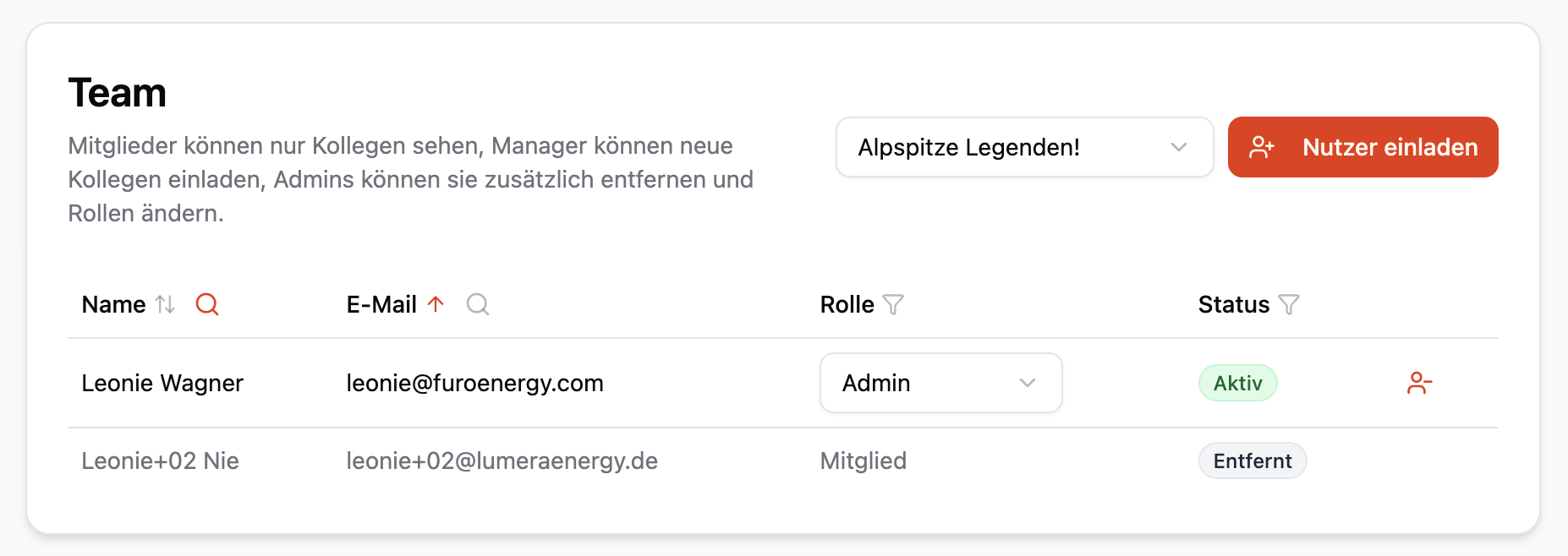
Admin view
Roles
There are three roles:
- Member: works normally in Furo — projects, analyses and battery portfolio as usual — and sees all colleagues in the company, but does not manage them.
- Manager: additionally invites colleagues and manages open invitations. This is the default role — whoever you invite is a manager first, unless you pick something else.
- Admin: additionally removes people from the account and changes roles.
Nobody assigns a role above their own: a manager invites as member or manager, admin is assigned only by an admin.
As a member you see the same list, just without the management functions:
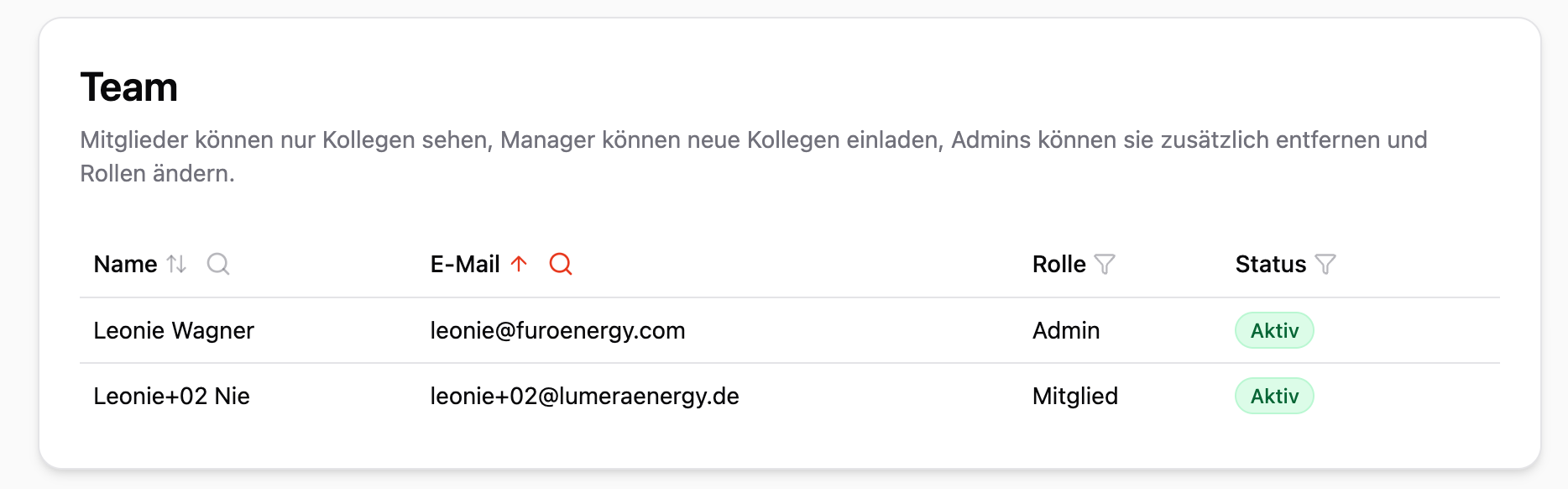
Member view
Inviting colleagues
- Open Invite user at the top right.
- Enter the email address and pick the role.
- Invite.
The person receives an email with an invitation code and stays in the list with the status Invited until they have redeemed it.
You can only invite addresses on the email domains stored for your company — that way nobody ends up in your account by accident. If a domain is missing, for instance after a change of company name or for a subsidiary, write to us.
For open invitations you have two options:
- Resend: sends a new code, for instance when the email ended up in spam.
- Revoke: makes the invitation invalid.
Changing roles
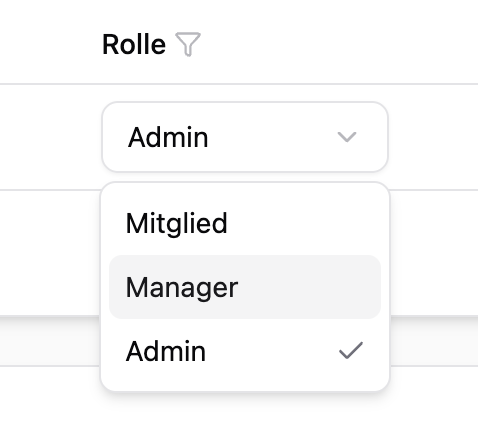
As an admin you change a role directly in the list: in the Role column you pick the new role, and it applies immediately.
Removing someone
Remove takes the person's access to this company account away. To confirm, you type their email address.
Important: analyses, projects and batteries are kept and remain assigned to that person. So you lose nothing when someone leaves the company — the access ends, the work stays visible. Removed people stand in the list in gray with the status Removed.
If someone comes back, you simply invite them again — that restores the access.
Several company accounts
If you belong to several company accounts — one entity per country, for example — you pick directly in User management which company you are currently working in. Everything you see and create after that belongs to this company: projects, analyses, battery portfolio and the user list.
The accounts stay separate. Battery portfolio, colors and logo apply per account and are not synchronized between accounts.
What the Furo team takes care of
- Assigning the first admin role in a new account
- Adding a person who already has Furo access to an additional company account — you can only invite people without existing access
- Storing or changing email domains for your company
- Subscription, project limits and white label
Write to us for that at support@furoenergy.com.